Topics for businesses
Protect your listing with an authenticator app
Two-factor sign-in, so a stolen email alone can't get into your listing.
Turn on two-factor sign-in
There are no passwords on Painted Circle, so whoever reads your email could sign in. An authenticator app (Google Authenticator, Authy, 1Password and others) adds a code only your phone has. On your dashboard, open Settings and follow Turn on two-factor sign-in: it opens My circle → Settings.
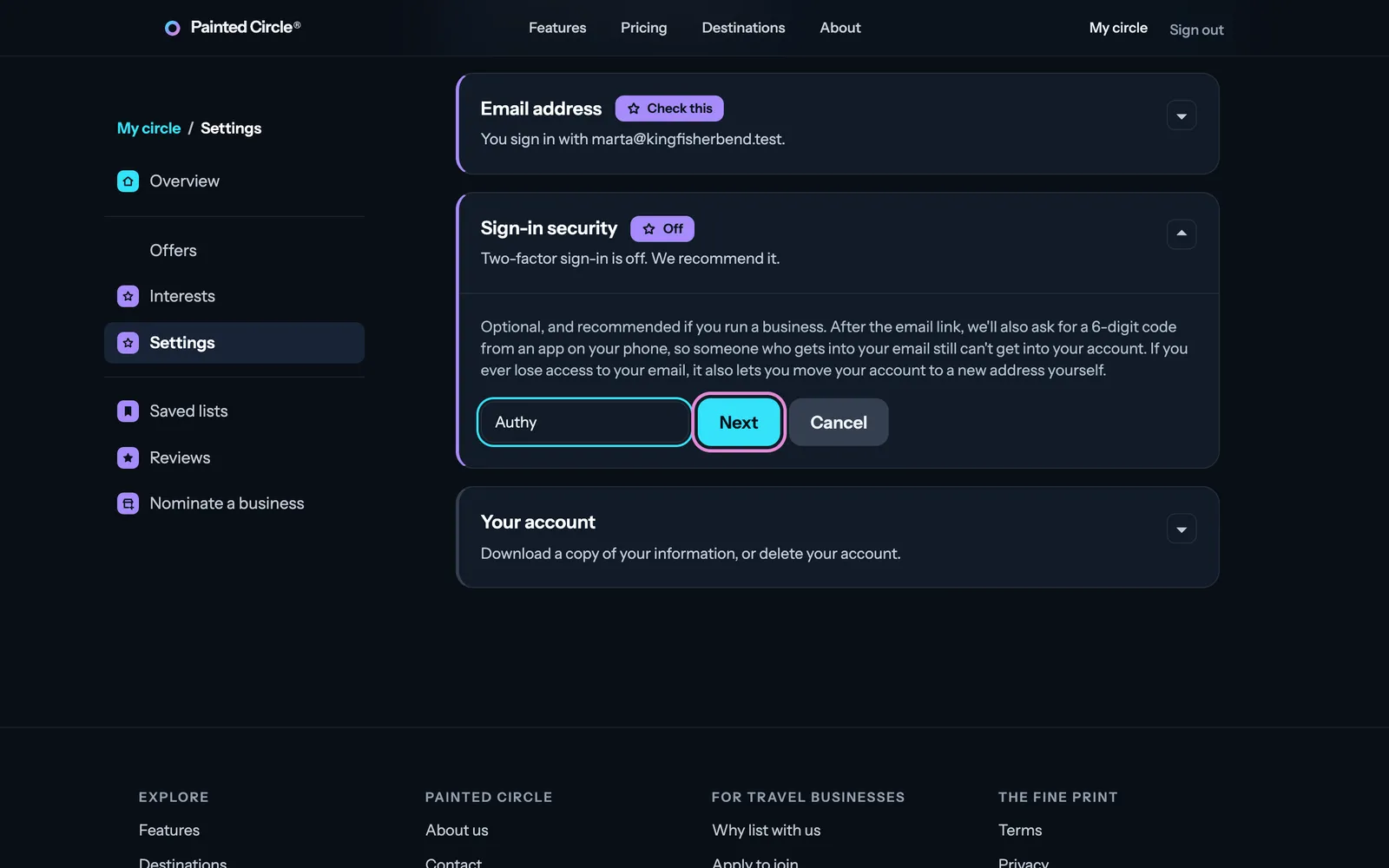
1Under Sign-in security, press Turn on two-factor sign-in, type which app you use, and press Next.
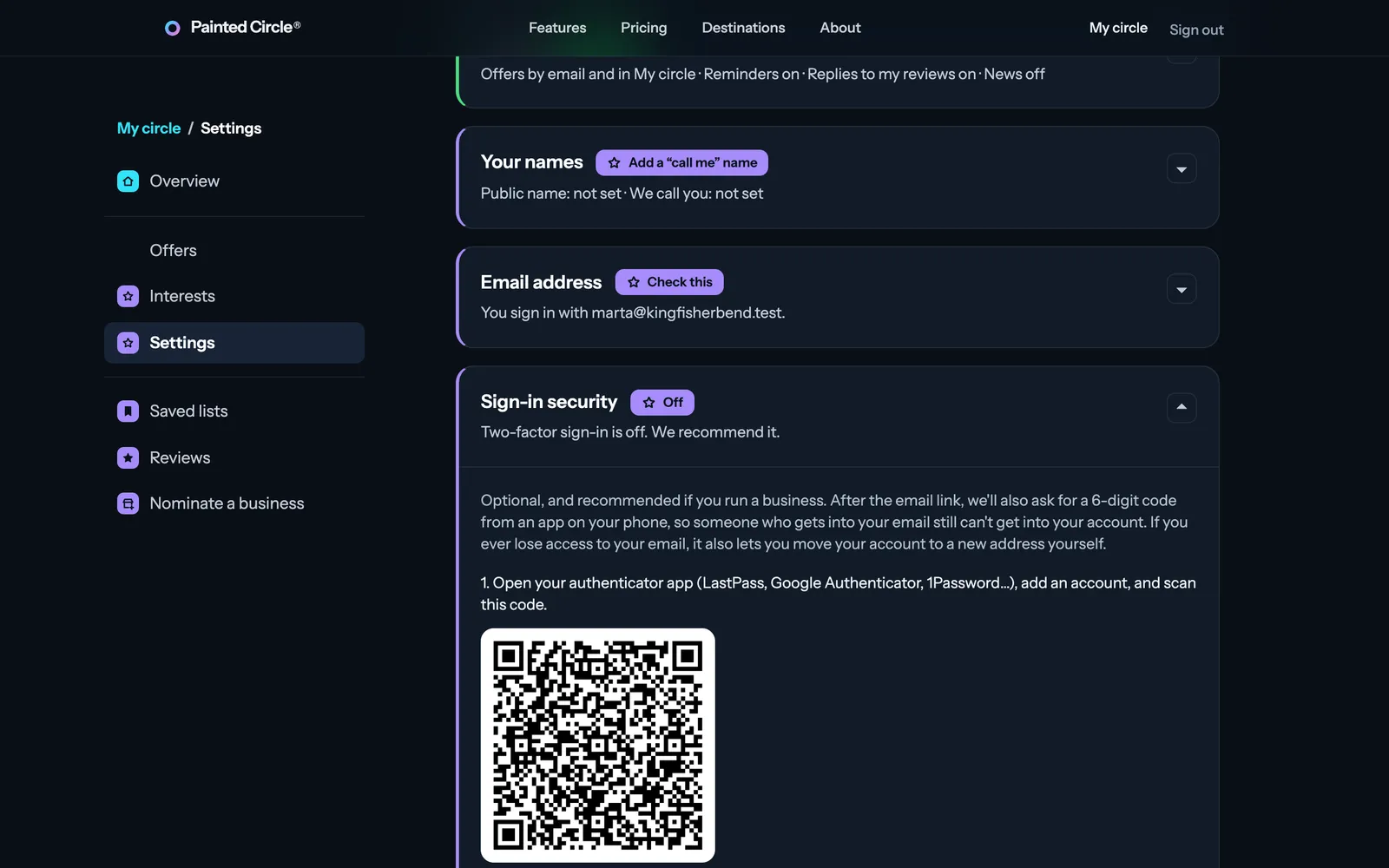
2Scan the QR code with your authenticator app (or type the key under it), then type the 6-digit code the app shows and press Confirm.
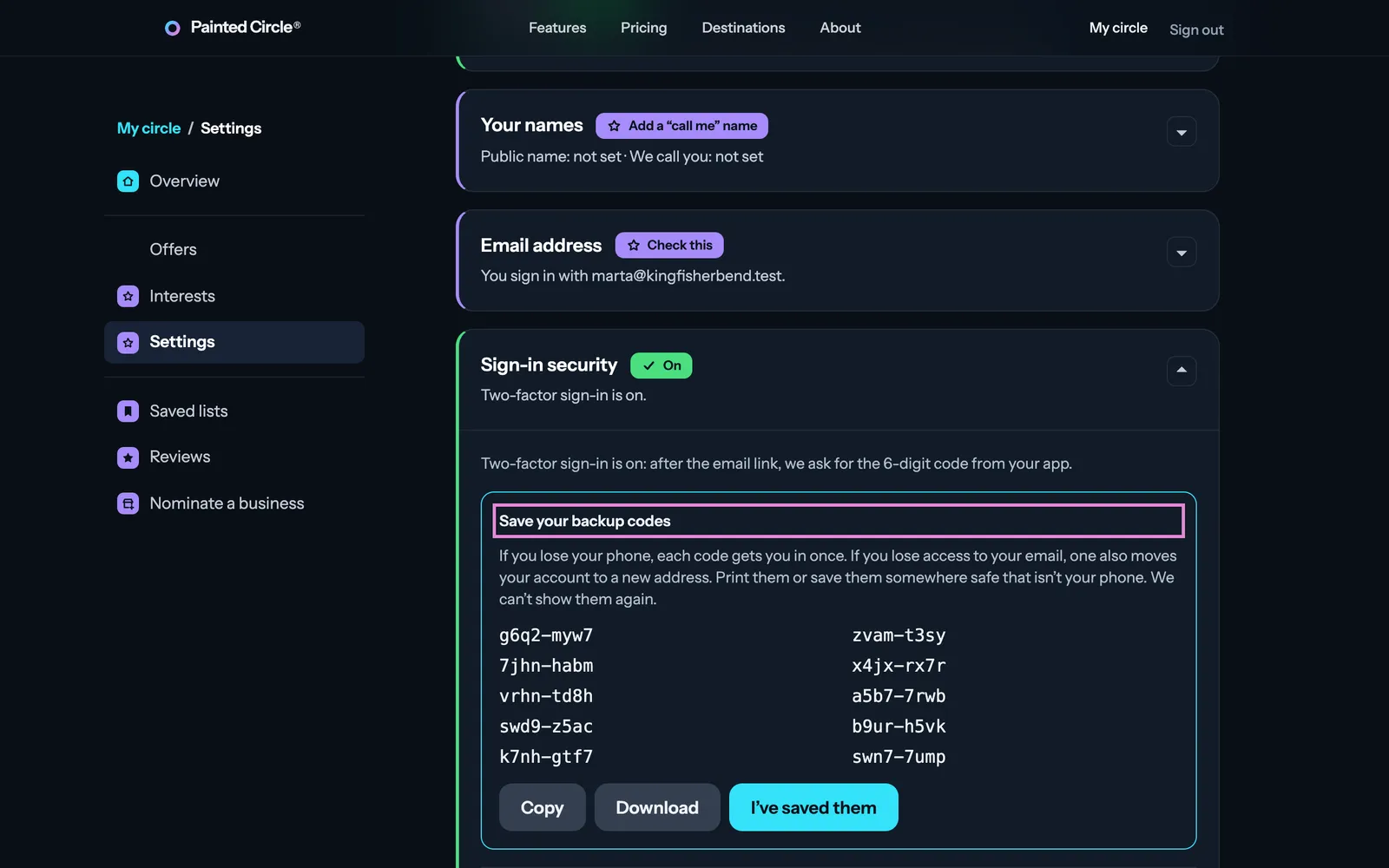
3Save your backup codes somewhere safe (print them or keep them in a password manager). Each one works once if you lose your phone.


More detail
- From now on, after the email link, you also type the code your app shows.
- Changing phones? Add the new app before removing the old one; codes from either work.
- Recommended for every business, and it covers your traveler account too: it's one sign-in.
The pictures show an example business. Still stuck? Email info@paintedcircle.com.