Topics for businesses
Copy changes to your locations
Change something once on your template, then choose which locations get it.
Copy a change to your locations
Changing the template never changes a location on its own. You choose each time. Open the part to change from What new locations start with on your brand dashboard.
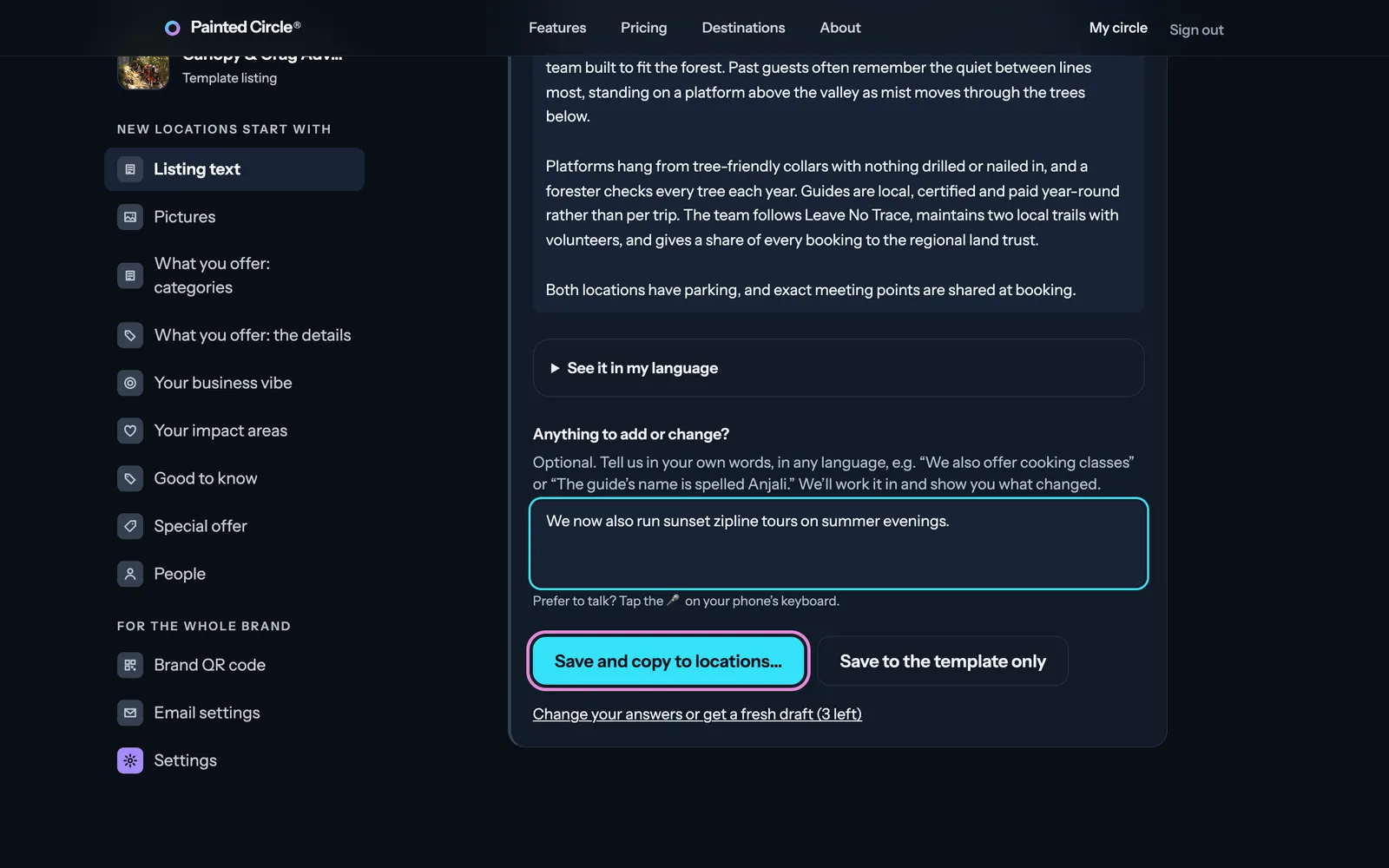
1Make your change, for example under Anything to add or change?, and press Save and copy to locations… (or Save to the template only).
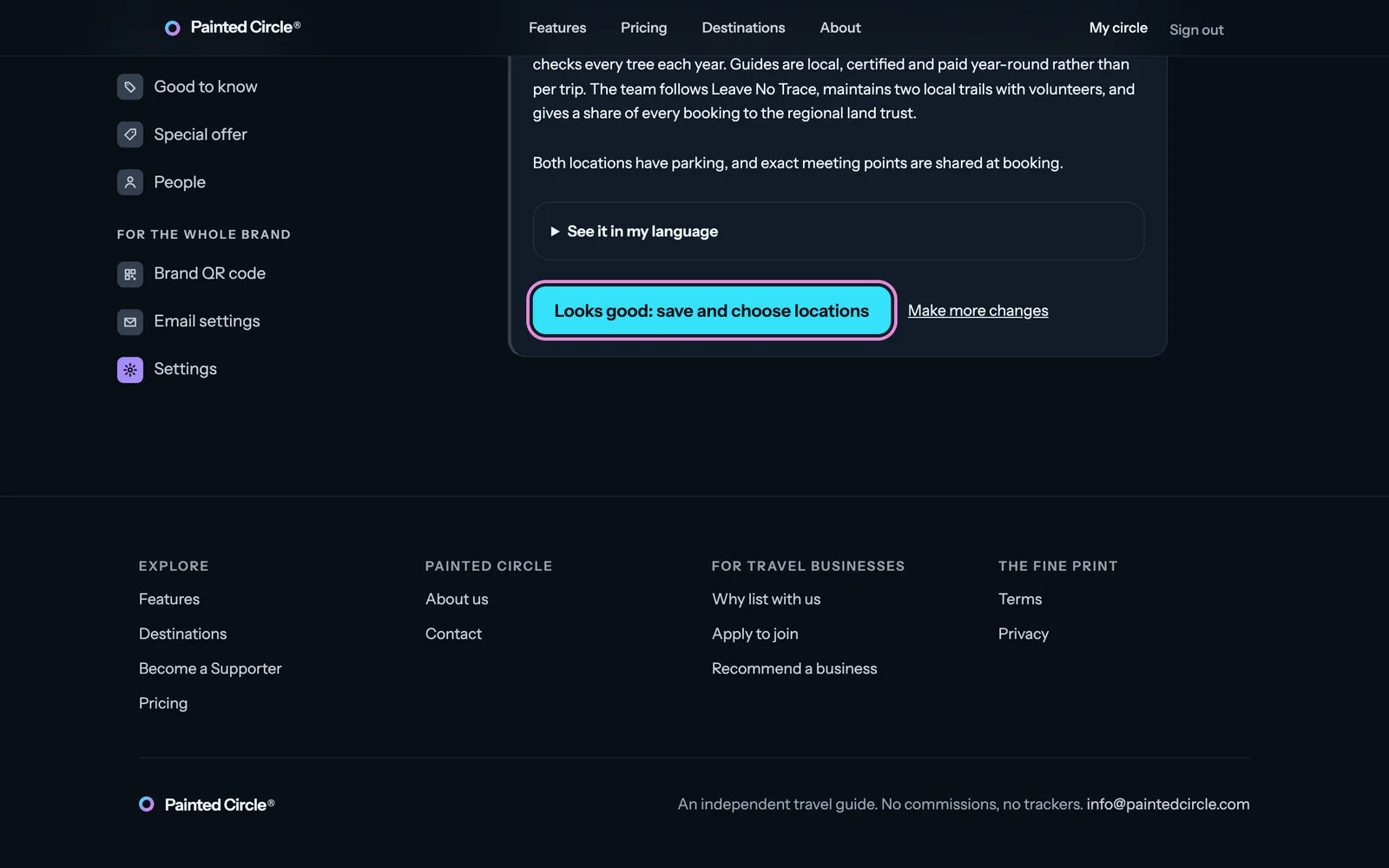
2Check the change and press Looks good: save and choose locations.
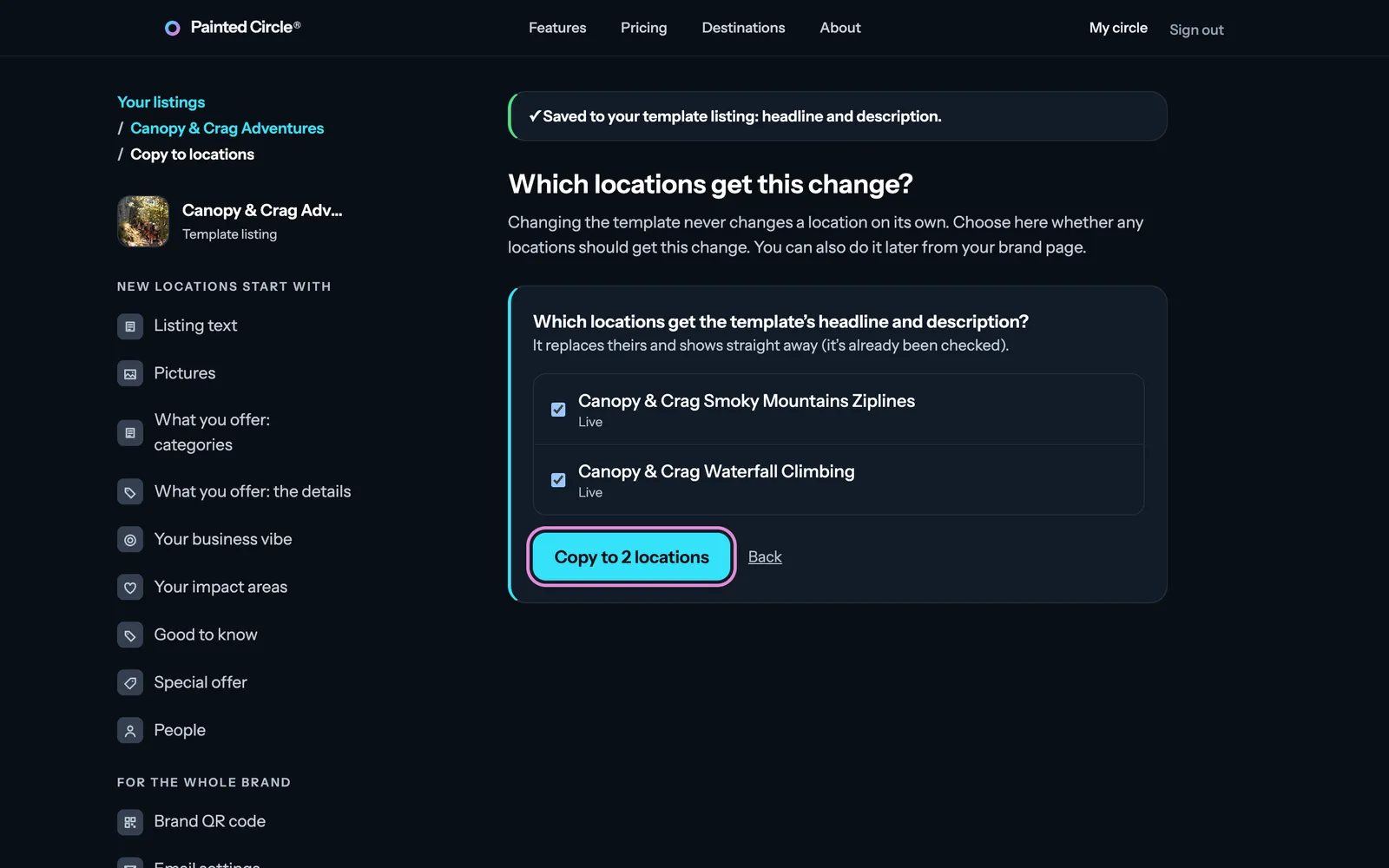
3Tick the locations that should get it and press Copy to them. It replaces theirs and shows straight away, because it's already been checked.


More detail
- Locations that already match the template for that part aren't listed.
- If a location has a change of its own with our team, it can't be replaced until that's settled.
- Your brand dashboard tells you when locations differ from the template, with Copy changes to locations to compare them one by one.
- Good to know, places and spots are always set per location and are never copied.
The pictures show an example business. Still stuck? Email info@paintedcircle.com.