Topics for businesses
Add a location
Each new location starts as a copy of your template, ready in a few steps.
Add a location
On your brand dashboard, choose Add a location.
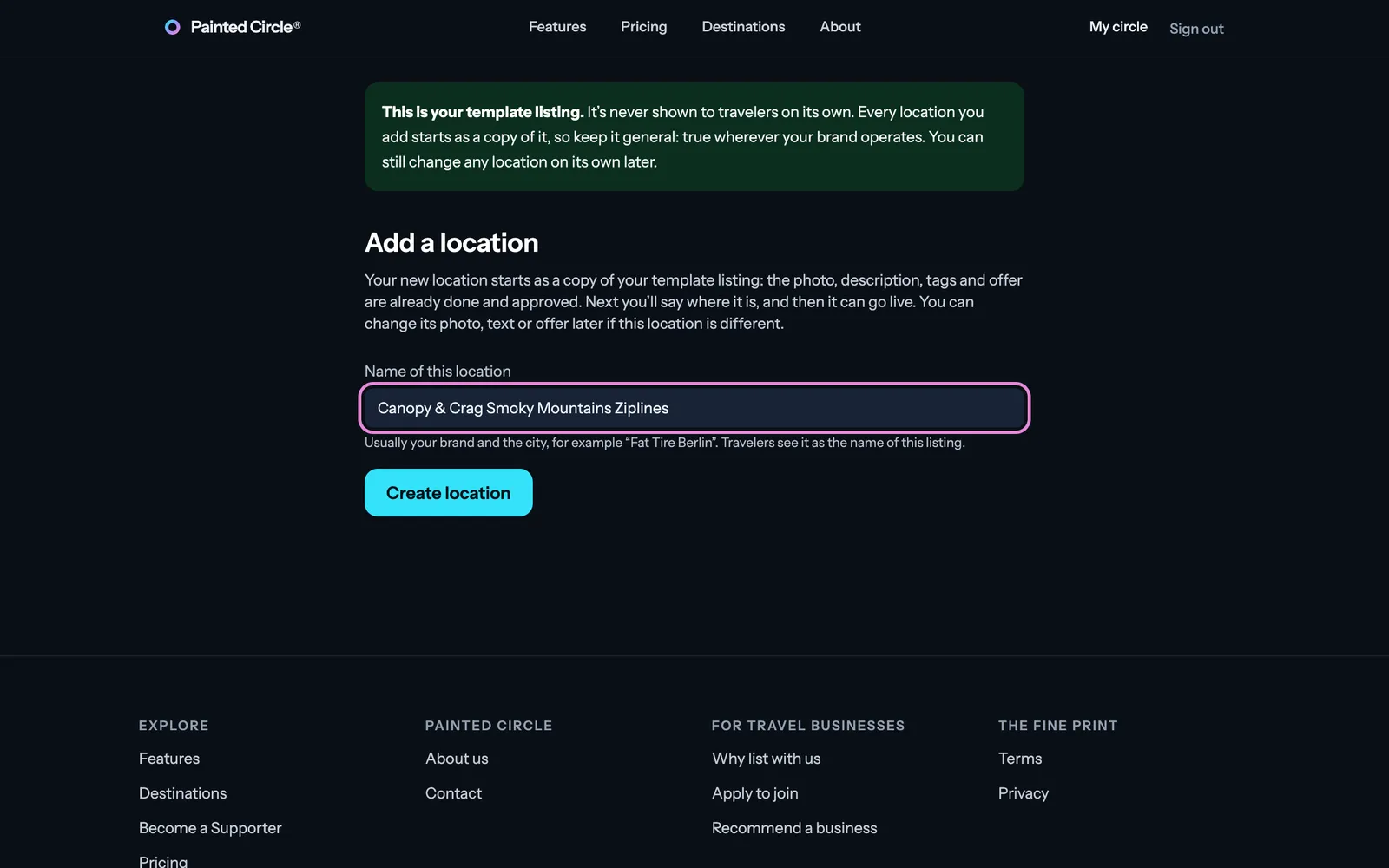
1Name the location, usually your brand and the place, and press Create location. It starts as a copy of your template: the photo, description, tags and offer are already done and approved.
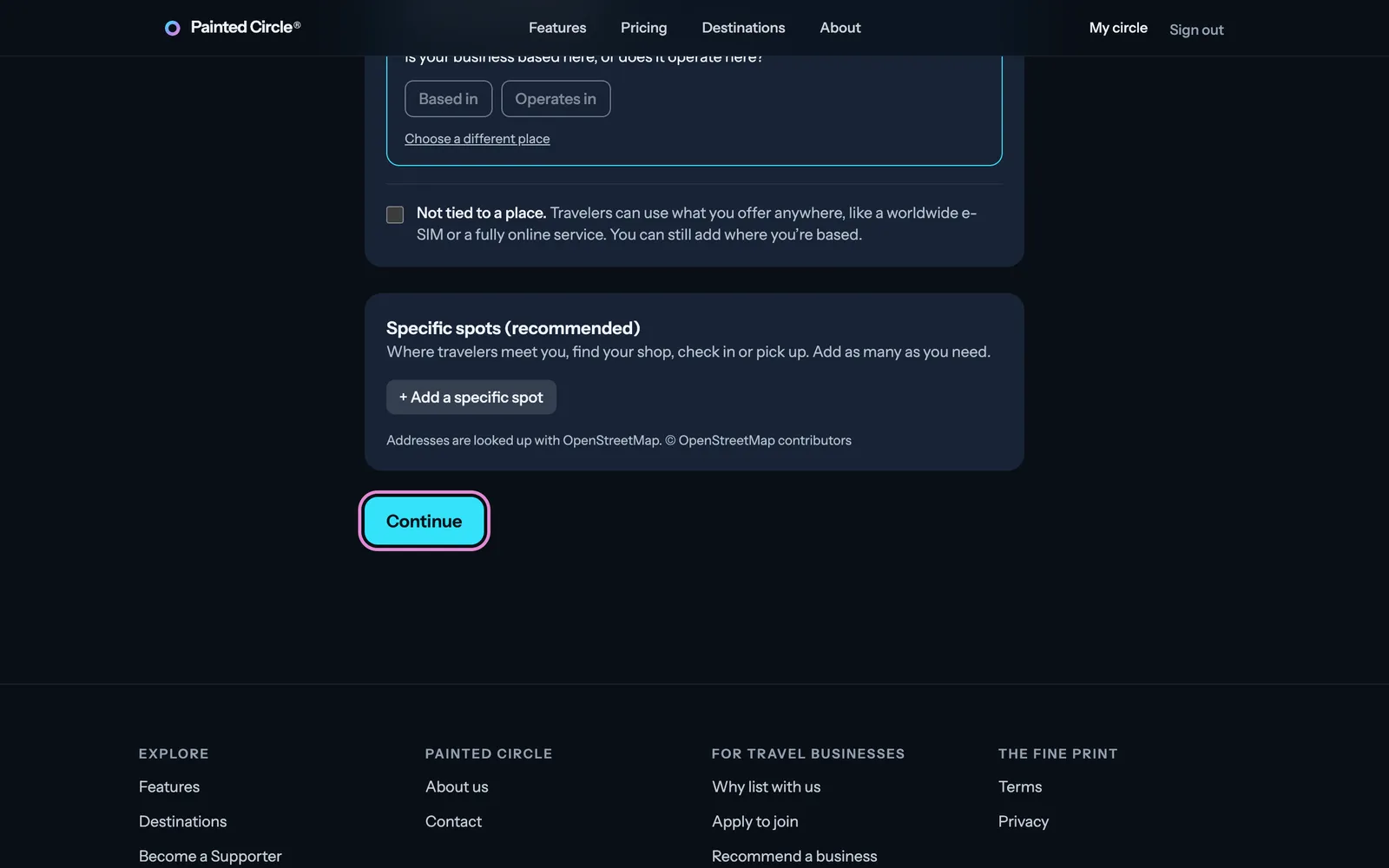
2Next, say where it is: add its places, choosing Based in or Operates in, and press Continue.
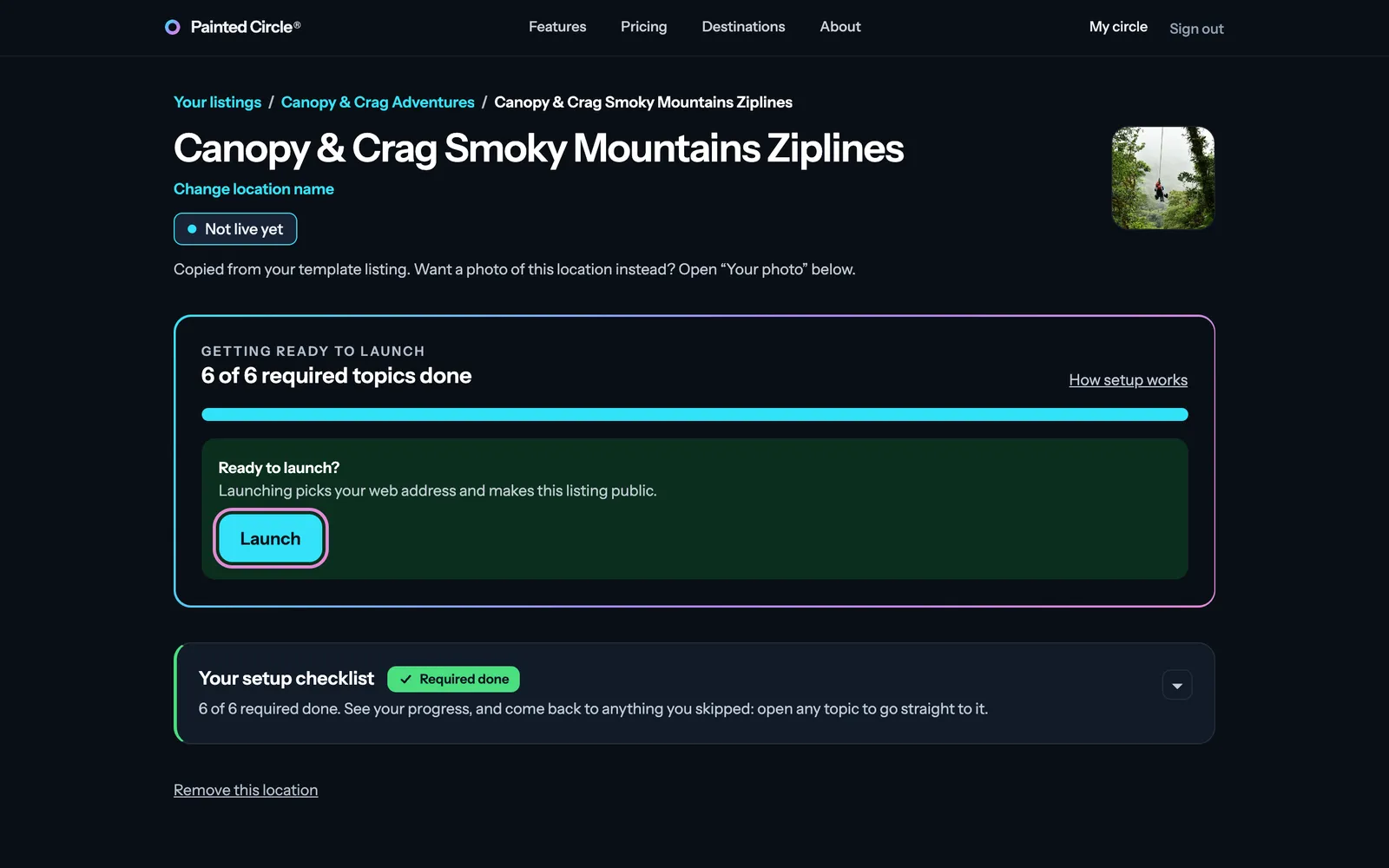
3When its required steps are done, press Launch on the location's dashboard.


More detail
- Travelers see the location's name on its listing, so make it clear which place it is.
- Each location gets its own web address and QR code when it launches.
The pictures show an example business. Still stuck? Email info@paintedcircle.com.